
New computer setup & data transfer in Norfolk, NE
Moving to a replacement computer or getting a new setup ready? I help with files, software, connected devices and the practical details of changing computers.
A considered move to your next computer
-
1
Plan the move
A computer replacement is more useful when the files and everyday tools you rely on are considered from the start. I help identify what needs moving from the existing device and discuss what is available to copy.
Tell me about documents, photographs and other important folders, as well as the programs you use. Applications, licenses and account access may need separate installation or sign-in; copying files alone doesn’t necessarily move the whole setup.
-
2
Transfer the files
Data transfers can be part of changing computers or upgrading storage in the same machine. The approach depends on the condition of the old drive, the destination and what needs preserving.
I’ll discuss the scope before work begins. Existing backups and a clear list of important files help avoid assumptions about what you need. Don’t send private files, passwords or account recovery codes through the public form.
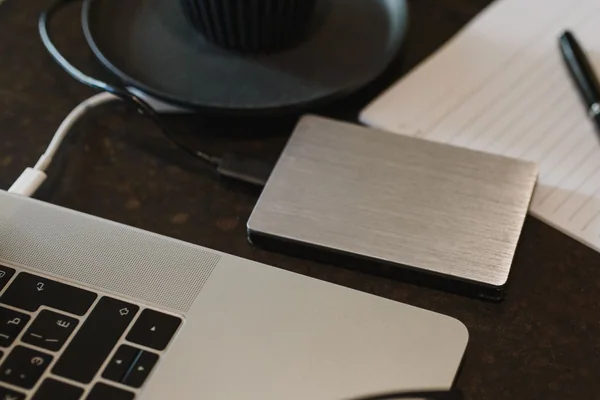
Illustrative stock photo · Arina Krasnikova / Pexels -
3
Set up what you use
Setup can include installing appropriate software, configuring a workstation, connecting monitors and printers, and checking how the devices work together. For a business replacement, I can discuss the equipment and software involved in the workstation.
Have your own software and licensing information available when the work is arranged. You’ll need access to any accounts or software licenses needed for setup; please keep credentials out of the service request.
I can also help install software and configure user accounts, Microsoft 365, OneDrive and email on the replacement computer. Tell me which accounts and applications you use; availability and licensing requirements need to be considered.
When a drive or computer has failed
I can discuss a data-recovery assessment when a device or drive is having problems. Recovery depends on the failure and the condition of the storage; access to every file cannot be guaranteed.
Let me know if the device no longer starts, the drive isn’t detected or files are missing. I’ll discuss whether a transfer or another recovery approach can be considered before proceeding.
Bring the important details together
- Existing and replacement computer models
- The files and programs you need
- Backup availability and known drive problems
- Printers, monitors or other devices to connect
Please keep passwords and private files out of your request.
Common questions
Can all programs simply be copied to the new computer?
Some applications need a fresh installation, compatible version or license activation. I’ll discuss the programs involved rather than assume file copying transfers everything.
Can you recover files from a computer that won’t start?
It may be possible to assess the storage separately, depending on the fault. Contact me with the symptoms; a recovery result cannot be guaranteed.